Step 1
Understand how the Excel analysis is made.
The Excel analysis is the workbook you take from the engineering calculation: the panel, bolt, gasket and sheet quantities in one place.
It is not built from scratch. WaterForm opens a template and writes the quantities it has calculated into fixed cells. Formatting, formulas, logo and print settings come from the template.
A standard template comes with the product for each language, so the Excel analysis works even if you upload nothing. If you want your own title block or logo, you download the standard template, edit it and upload it again.
Step 2
Open the ‘Templates’ section.
In Settings, click ‘Templates’ under ‘Company’. People with the ‘Brand and templates’ permission see this section.
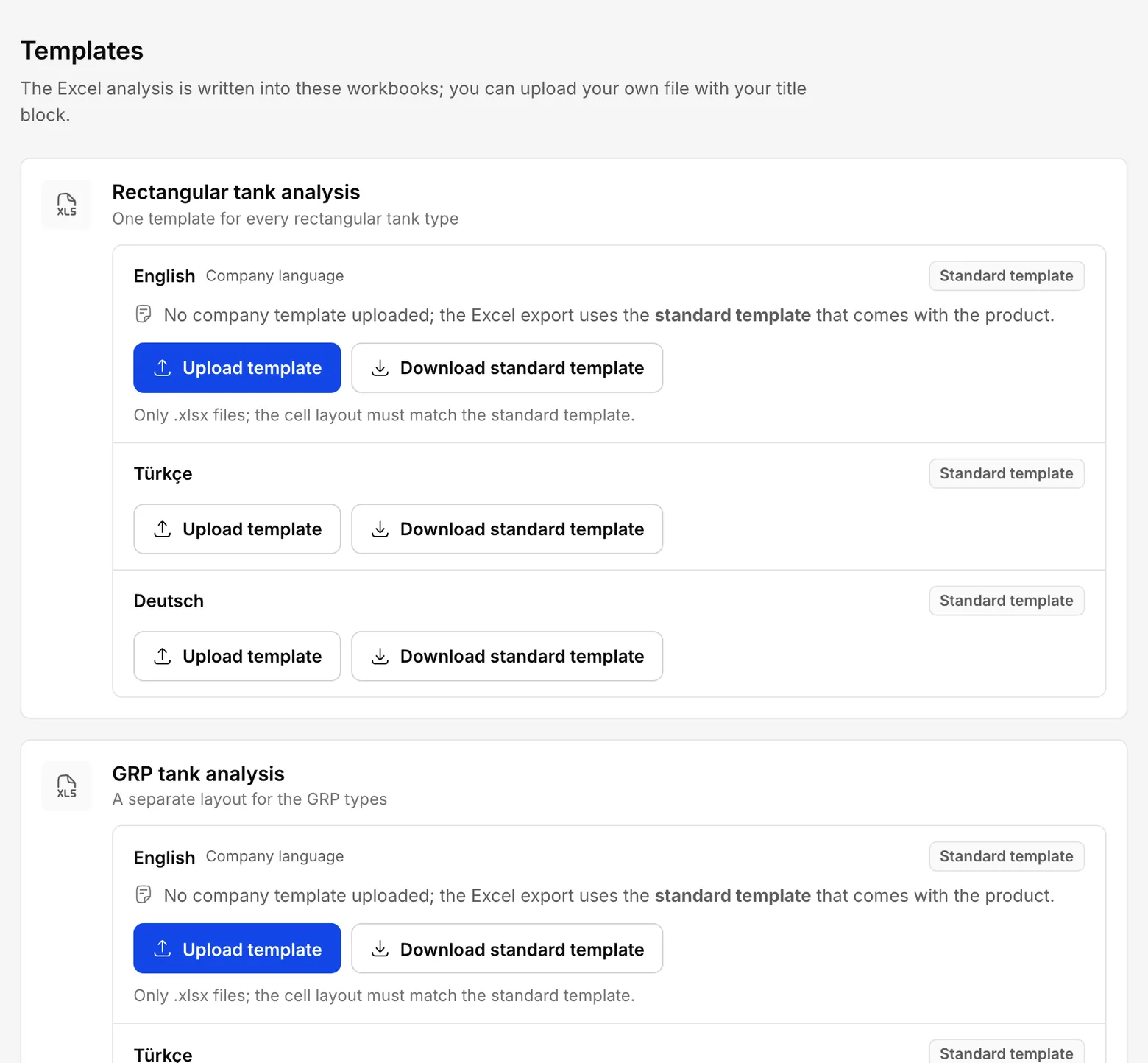
There are two cards: ‘Rectangular tank analysis’ and ‘GRP tank analysis’. The one template on the rectangular card serves every rectangular tank type. If you build only rectangular tanks, the first card is all you need.
Each card has a place for each language: ‘Türkçe’, ‘English’ and ‘Deutsch’. Your company's language comes first, marked ‘Company language’. At the right of each place it says which template it uses: ‘Standard template’ or ‘Your company’s own’.
What you should see
The place for your company's language says ‘No company template uploaded; the Excel export uses the standard template that comes with the product.’
Step 3
Download the standard template.
In the place for the language you want to prepare, press ‘Download standard template’. The file lands in your Downloads folder.
Open it in Excel.
Step 4
Add your title block and logo without moving any cells.
You can add your company name, address and logo to the template, and change the fonts, colours and print settings.
There is one rule: do not move cells. Do not insert or delete rows or columns, and do not cut cells and paste them elsewhere. WaterForm writes the quantities into fixed cells; if a cell moves, the number lands in the wrong place.
Place the logo over the cells as a picture, and use empty cells that are already there for text. Save the file as .xlsx.
Step 5
Upload the template to the right language.
Go back to ‘Templates’. In the place for the language the file is in, press ‘Upload template’ and choose the file. Only .xlsx files are accepted.
The program checks the file at once: are all the cells WaterForm writes to where they should be?
If you want your own template in other languages too, do the same for each. An empty place uses that language's standard template.
What you should see
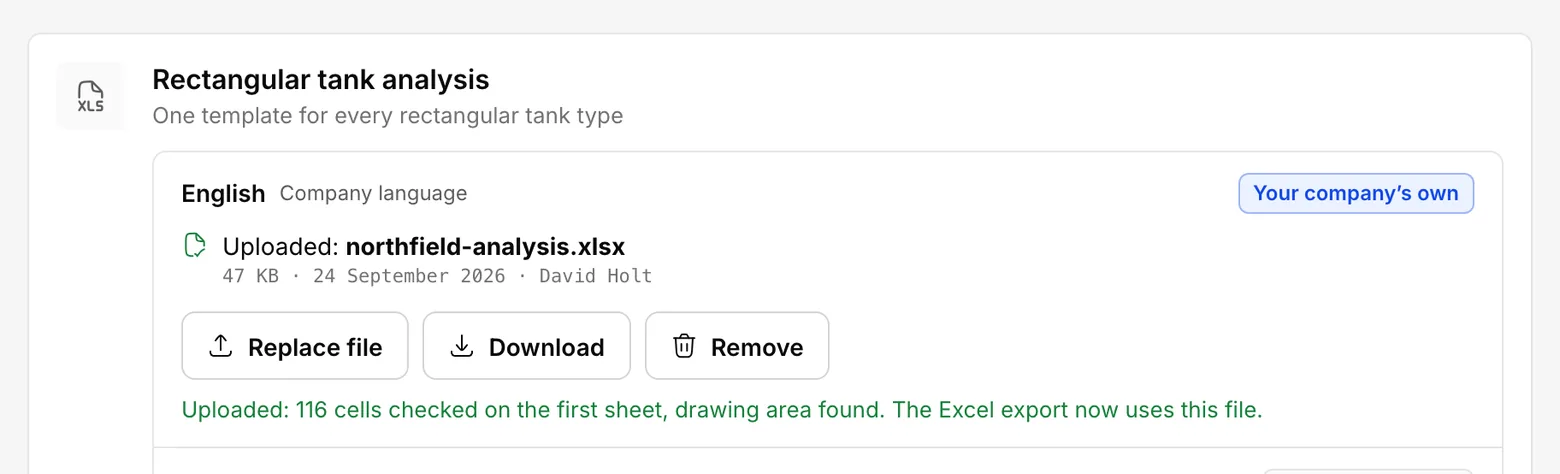
A line starting ‘Uploaded’ appears: it says how many cells were checked and that the Excel export now uses this file.
Step 6
If the check cannot find a cell, correct your file.
If the cell layout has changed, the file is refused and the addresses of the missing cells are named, for example C14. The previous template stays in use in that place.
Look at that address in Excel. Usually a row or column has been inserted. The easiest fix is to download the standard template again and redo your changes without shifting any cells.
Step 7
Go back to the standard template if you wish.
To stop using your own template, press ‘Remove’ in its place. The program asks first; once you confirm, the Excel analysis comes from the standard template again.
You can keep a copy of your file with ‘Download’ before you remove it.
Step 8
Back your templates up in one file.
In the ‘Backup and transfer’ card at the bottom of the page, press ‘Export templates (.json)’. All your templates go into one file.
You load that file into another account or installation with ‘Import templates’. Importing replaces the templates already there.
The catalogue file in the ‘Data transfer’ section carries your templates too.
What you should see
A notice says ‘Template file downloaded; it is in your Downloads folder.’
Step 9
Take an Excel analysis and check it once.
Open a job in the engineering calculation and press ‘Export to Excel’. The file comes from the template for your company's language.
The ‘Export’ card says which template is in use: ‘Template: standard (comes with the product)’, or the name of your file.
Open the first file and check that the numbers are in the right cells.
What you should see
Your title block and logo are in the workbook, and the quantities are where they always are.
Stuck somewhere? Write to us and we will try to answer the same day: contact@fabrikode.com